Setup Guide
How to install & use SlapMyLaptop. Follow these steps in order. The whole setup takes about 2 minutes.
Start here
Purchase SlapMyLaptop
Go to the pricing section on the homepage and click Buy Now — $5.99. You will be redirected to a secure checkout page to complete your payment. Your email at checkout is only needed if you ever use Recover Key — you do not need to wait for email to get your license.
Your card details are handled securely by our payment processor (Polar) — we never see or store them.
Copy your key
Your license key appears on screen
As soon as payment completes, your personal license key is shown on the same tab — no need to check email. It looks like this:
Copy this key and store it somewhere safe — you will need it in Step 5.
Lost your key later? Go to Recover Key in the nav, enter the same email you used at checkout, and your key will be shown again.
Download
Download the app
Use the download buttons on the success page after purchase, or grab the Windows / macOS links from our homepage. The file will download to your computer.
Run the app
Handle the security warning
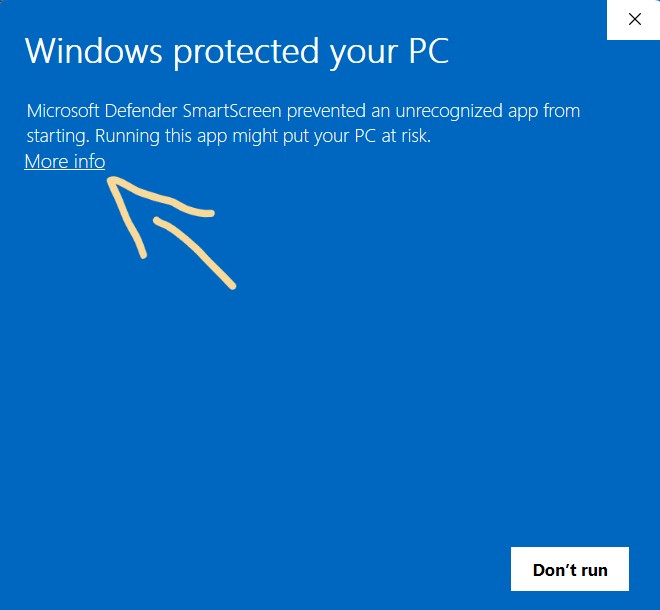
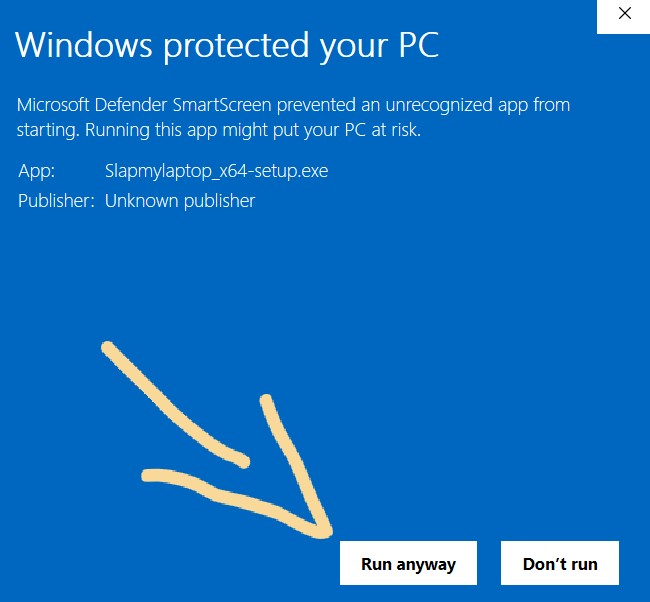
Double-click the installer. Windows may show a blue SmartScreen warning or macOS may show an unidentified developer warning — this is normal for new indie apps. Here is exactly what to do:
- 1Windows: Click "More info" on the blue screen, then "Run anyway".
- 2macOS: Right-click the app and select "Open", or allow it in Privacy & Security.
- 3The SlapMyLaptop activation dialog will open.
Activate
Enter your license key
The activation window will appear asking for your key.
- 1Copy your license key from the success page (or from Recover Key if you saved it earlier).
- 2Paste it into the activation box.
- 3Click "Activate".
Your license key is tied to your purchase. Each key is for personal use across your own devices.
System Tray
The app runs silently
Once activated, SlapMyLaptop runs silently in the background. Look for the icon in your system tray (Windows bottom-right taskbar, or macOS top menu bar).
Windows users: Can't find the icon? Click the ▲ arrow in the bottom-right corner of your taskbar to reveal hidden icons. Drag it out to always keep it visible.
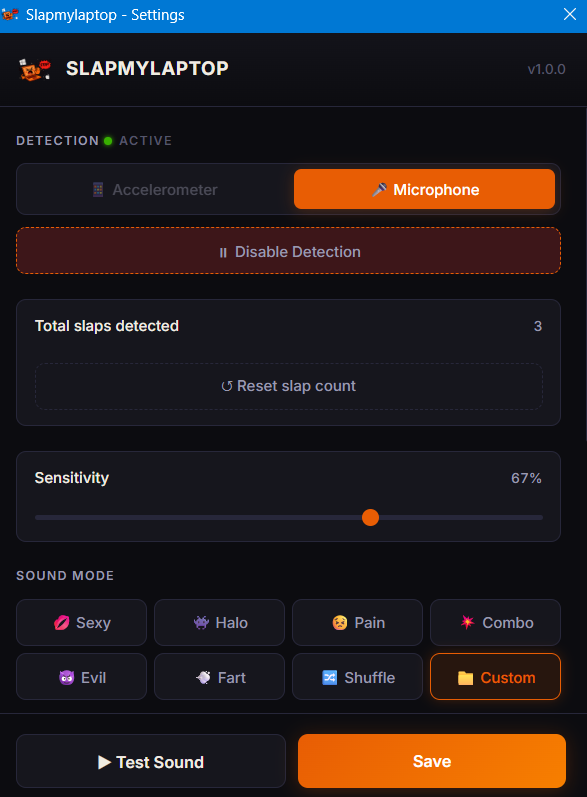
Right-click the tray icon → Settings to open this window:
Slap your laptop
Make it scream
With the app running, firmly slap your desk, your laptop lid, or the side of your laptop. The sensor or microphone will detect the sharp impact and play a sound from your selected pack.
If it's not triggering, try increasing Sensitivity in Settings — right-click tray icon → Settings → drag the slider to the right.
Customize
Change your sound pack
Right-click the tray icon → Sound Pack to choose your pack.
Choose from built-in packs: Sexy, Halo, Pain, Combo Hit, Evil Laugh, Fart, Shuffle, Custom.
Settings Menu
- Sensitivity: Controls how loud the impact needs to be. Increase if slaps aren't detected.
- Cooldown: Minimum time between two triggers. Prevents rapid-fire sounds.
- Volume: Master volume for all sound packs.
- Detection Mode: Toggle between Accelerometer (if supported) and Microphone.
- Custom Sounds: Create bundles and upload your own MP3, WAV, OGG, or FLAC files.
Custom Sounds
Upload your own audio
You can upload your own MP3, WAV, OGG, or FLAC files and use them as your slap sound. Make your laptop scream in any voice you want.
- 1Right-click tray icon → Settings.
- 2Go to your Bundles / Custom Sounds section.
- 3Click "+ Add Sound Files" and select your files.
- 4Select the "Custom" bundle as active and Save.
- 5Slap your laptop and hear your custom sound!
Common Issues
No sound plays when I slap
Make sure your speakers are not muted. Open Settings and increase Sensitivity. Ensure the app has Microphone access in your OS Privacy Settings.
I don't see the tray icon
Click the ▲ arrow in the bottom-right of your Windows taskbar. On Mac, check the top menu bar. You can drag it out to always show it.
License key is not working
Make sure you are copying the full key including the prefix. If it still fails, check your internet connection — the app needs to connect once to validate.
Lost my license key
Go to Recover Key in the Recovery tab, enter the same email you used at checkout, and use the recover flow to see your key again.
Still need help?
DM us on Instagram @aashir.swe